This is the tutorial on how MEG can be used. Since MEG is somewhat different than other programs, you need to
become aware of its abilities. The most important things to remember are that right clicking brings up menus and that the questions are: What are the properties of the "Fill in the Name" object?
This screen only has eleven or so things to understand. It can't be that hard, can it?
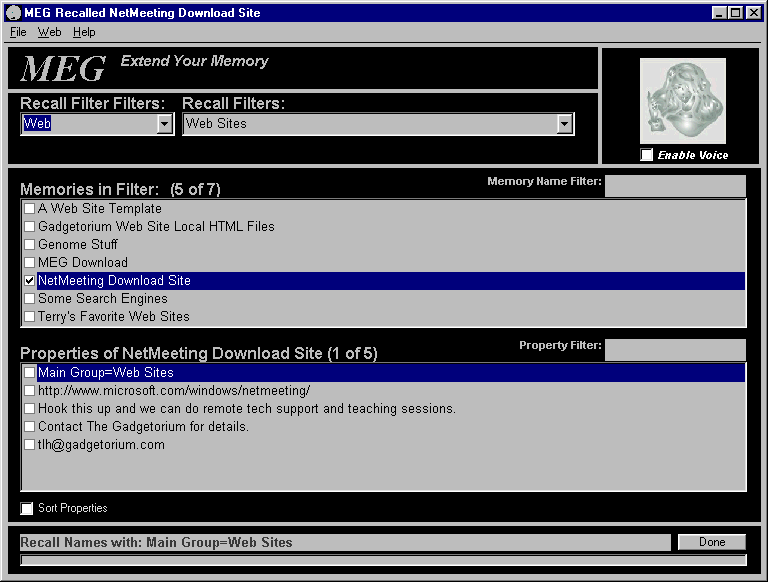
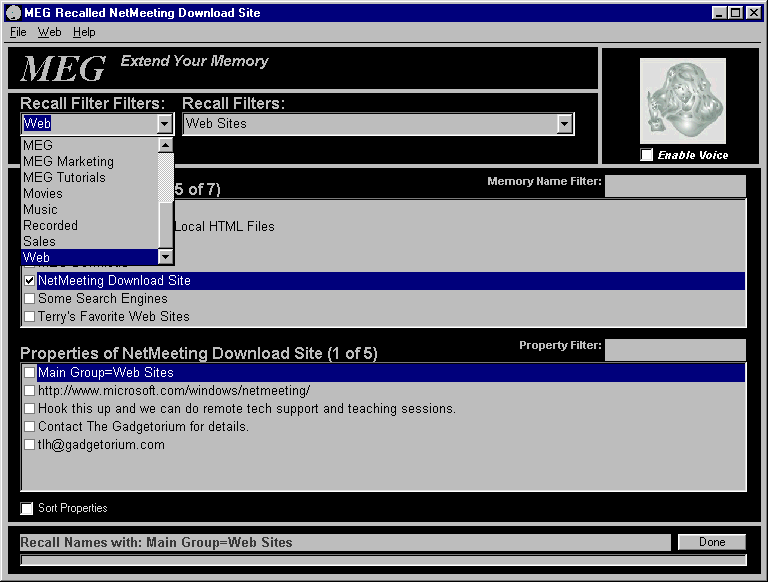
The Recall Filter Filters are used to constrain the Recall Filter List to the text in the Recall Filter Filters list. Here, just Recall Filters with "Web" in the Name are displayed. You add Recall Filter Filters by simply typing text into the list box and pressing the Enter key. Right Click on the label above the list box for a Menu to allow you to rename and delete Filters.
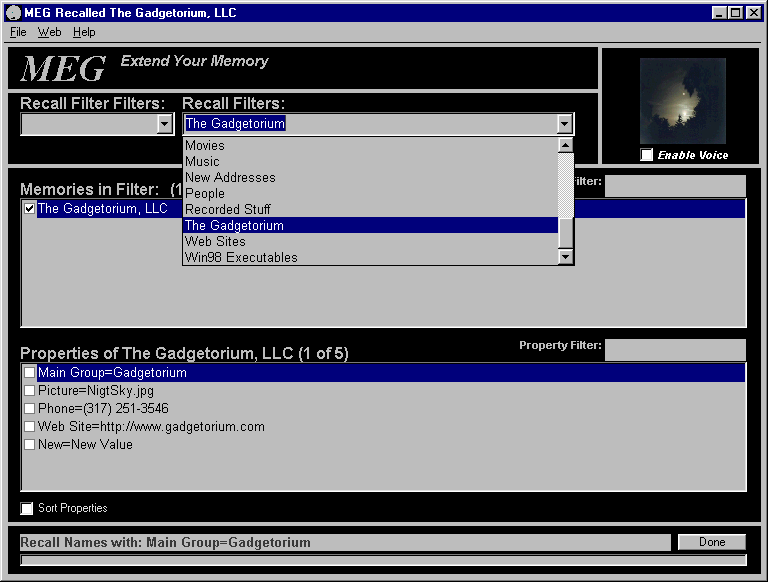
Recall Filters are used to view memories that are similar. In this example, The Gadgetorium Recall Filter extracts memories with the property Main Group=Gadgetorium.
You create Recall Filters by:
1) Select a Memory
2) Select a Property such as Main Group=LP
3) Right Click in Property List to get the Popup Menu
4) Select Make Recall Filter for Property
5) Enter the Name for this Filter
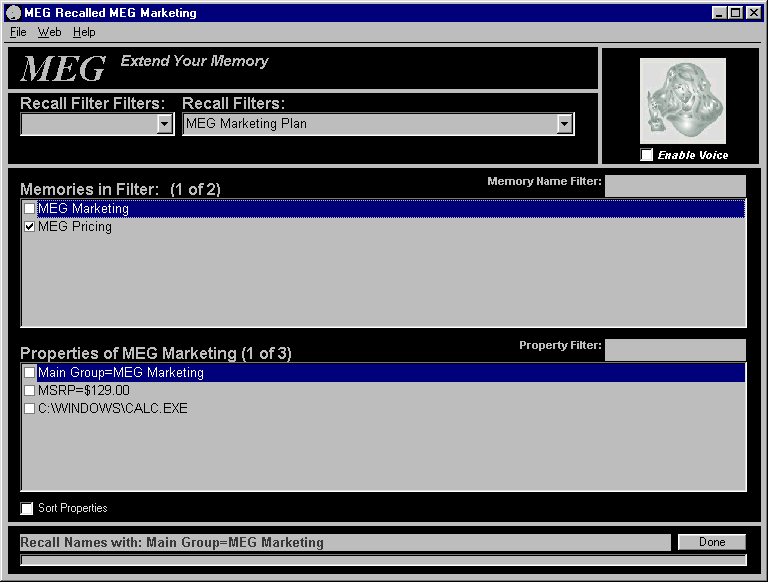
The Memory Names List (first big list) contains the names of all memories that satisfy the selected Recall Filter. The Recall Filter is MEG Marketing Plan in this example. The Memory named MEG Marketing is selected.
The Large List at the bottom is the Properties List. This list is all the properties of the selected memory. Right Click in List to get the menu.
You use memory templates to create generic memories for later use. Make a memory that has the properties you want that thing to have. A person as I see it.
________________________________________
A Person
Name
Address
City
State
Postal Code
Is=A Person
________________________________________
Next you clone it to create a copy.
Cloning Memories makes memory templates the thing. Once you create something that is a blank "something", you can make it a specific something by cloning it and then defining the properties to make it that specific "something". Tell MEG that a car has make, model, color, engine size and whatever else a car is to you. Then clone that general "car", fill in the blanks and it is your car. It really is a good way to use computers.
Here's how you clone a memory.
1) Select any number of memories you want by clicking in the check box beside them.
2) Right Click in the Memory Name List to get the menu.
3) Select Copy (Ctrl + C).
4) Right Click again.
5) Select Paste New (Ctrl + V)
6) Select No from the presented dialog.
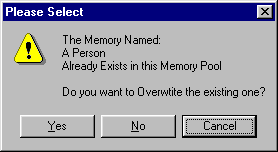
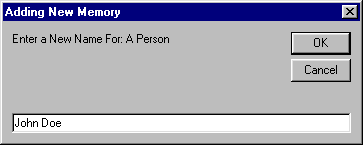
7) Enter a name for this New Memory.
8) Edit the Properties as needed to define this new thing, John Doe the person in this example.
You can use MEG to take snapshots of your Disk Drive Files and Internet URLs and open them later in the correct application. This feature can be used for project management. By assembling all the files for a given project under one MEG Recall Filter Topic, you get an overall view of the project. You can combine Word Processing Documents, Spreadsheet files, CAD files, Pictures, Recorded Sounds, Web Sites and any other type you need under one easy to find topic. This allows you to take snapshots of your Windows Explorer "Find File" results. It is very handy for organizing your work. To continue the theme, you can add a picture of your car, the engineering documents needed to build your car, a scanned copy of the title to your car and every other thing you need to define your car. Maybe just as important, you can ask someone else to define your car and combine the two perspectives by combining them. This then brings the concept of "Data Definition by Consensus" into the picture. Your car means different things to different people. MEG doesn't care about that. It just faithfully and unerringly remembers what it's told.
To associate files, do this:
1) Open Windows Explorer.
2) Select the files you want. For example, use the Explorer Find function to find all .doc files on your computer.
3) Drop the Files onto the MEG Properties List.
This will create properties of the selected object that you can be run by selecting "Open File" from the Properties List Popup Menu.
The ability to combine the properties of one memory with another is another powerful feature. You, in effect, "make" one memory be itself and another one at the same time. This can be used to create previously unknown objects. Add the properties of a chicken and the properties of a cow to make a chick-cow-ken.
You combine the properties of one memory to any other one by doing this.
1) Select a Memory in the Memory Name List. This is the Memory to add to another one.
2) Copy the Memory to the Clipboard.
3) Select the Memory you want to add the properties of the one on the Clipboard to.
4) Right Click in the Memory Names List for Menu.
4) Select "Paste Combine" from the Popup Menu.
This is another very useful feature for exchanging information. The Import function will add the memories from another Memory Pool to yours. All memories with the same name will be either skipped, combined or overwritten depending on what you want to do.
1) Select File->Import to select the mode of import.
2) Select the Import File to be used.
Export Memories to Word Processor Top
1) Select Memories to Export.
2) Press Ctrl + C to Copy to the Clipboard.
3) Open the Word Processor.
4) Press Ctrl + V to add to the file.
If you are interested in checking out the MEG System, download a demo version from: